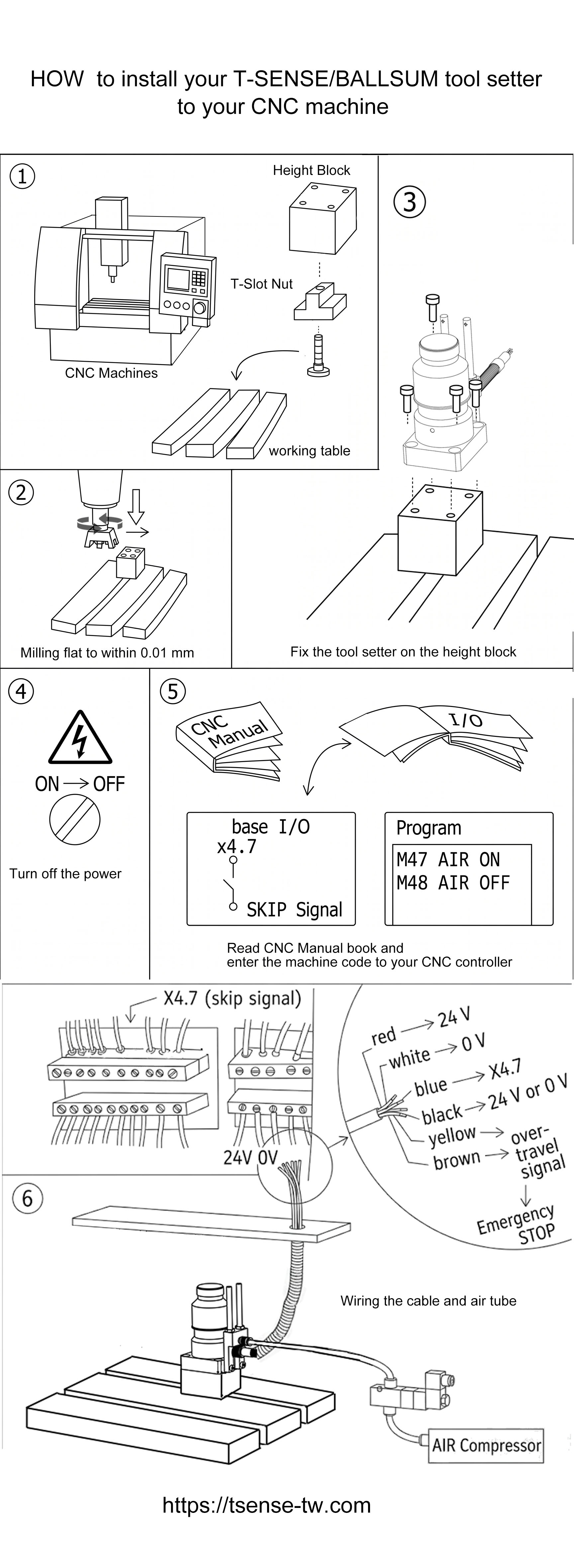
Hardware Installation Steps
Prepare Parts & Working Table
Prepare the following items: CNC machine, working table, height block, T-slot nuts, and mounting screws.
Mill the Height Block Flat
Mount the height block onto the working table using T-slot nuts, then perform milling.
✅ Top surface flatness tolerance must be within 0.01 mm to ensure an accurate mounting reference plane.
Mount the Tool Setter
Secure the T-SENSE / BALLSUM tool setter body onto the top of the milled height block using screws. Ensure screws are tightly fastened with zero wobble.
⚠️ Turn Off Machine Power
Before making any electrical connections, the main machine power must be turned off (ON → OFF) to safeguard personnel and prevent electronic component damage.
CNC Controller Parameter Setup
Consult the CNC operation manual and configure the following parameters:
- SKIP Signal Pin:
X4.7(Base I/O) orHDI0(FANUC controller example) - Air Blow ON M-Code:
M47 AIR ON - Air Blow OFF M-Code:
M48 AIR OFF
※ In FANUC systems, hardware pin HDI0 corresponds by default to PMC logical address X0004 Bit 7 (X4.7).
Wiring & Air Tube Connection
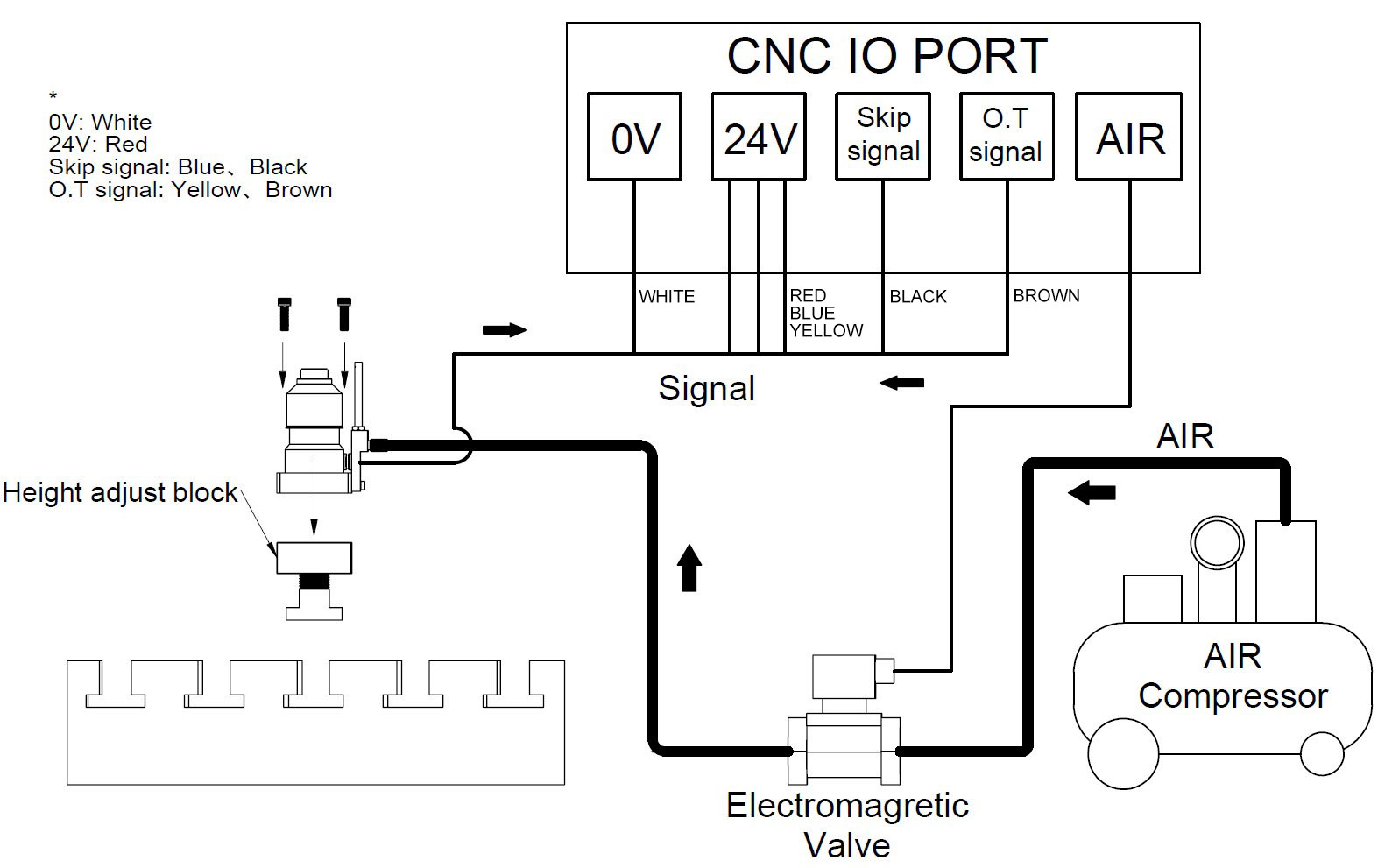
Complete wiring according to the wire color definition below, and connect the air blow tube to the solenoid valve and AIR compressor:
| Wire Color | Function | Terminal |
|---|---|---|
| Red | Power Supply Positive | 24 V |
| White | Power Supply Negative / GND | 0 V |
| Blue | Skip Signal | X4.7 |
| Black | Power (depends on config) | 24 V or 0 V |
| Yellow | Over-travel Signal | Emergency STOP Loop |
| Brown | Over-travel Signal | Emergency STOP Loop |
Power On
After verifying all wiring and pneumatic connections, turn on the machine main power (OFF → ON) and wait for the CNC controller initialization to finish.
Wiring Connection Diagram
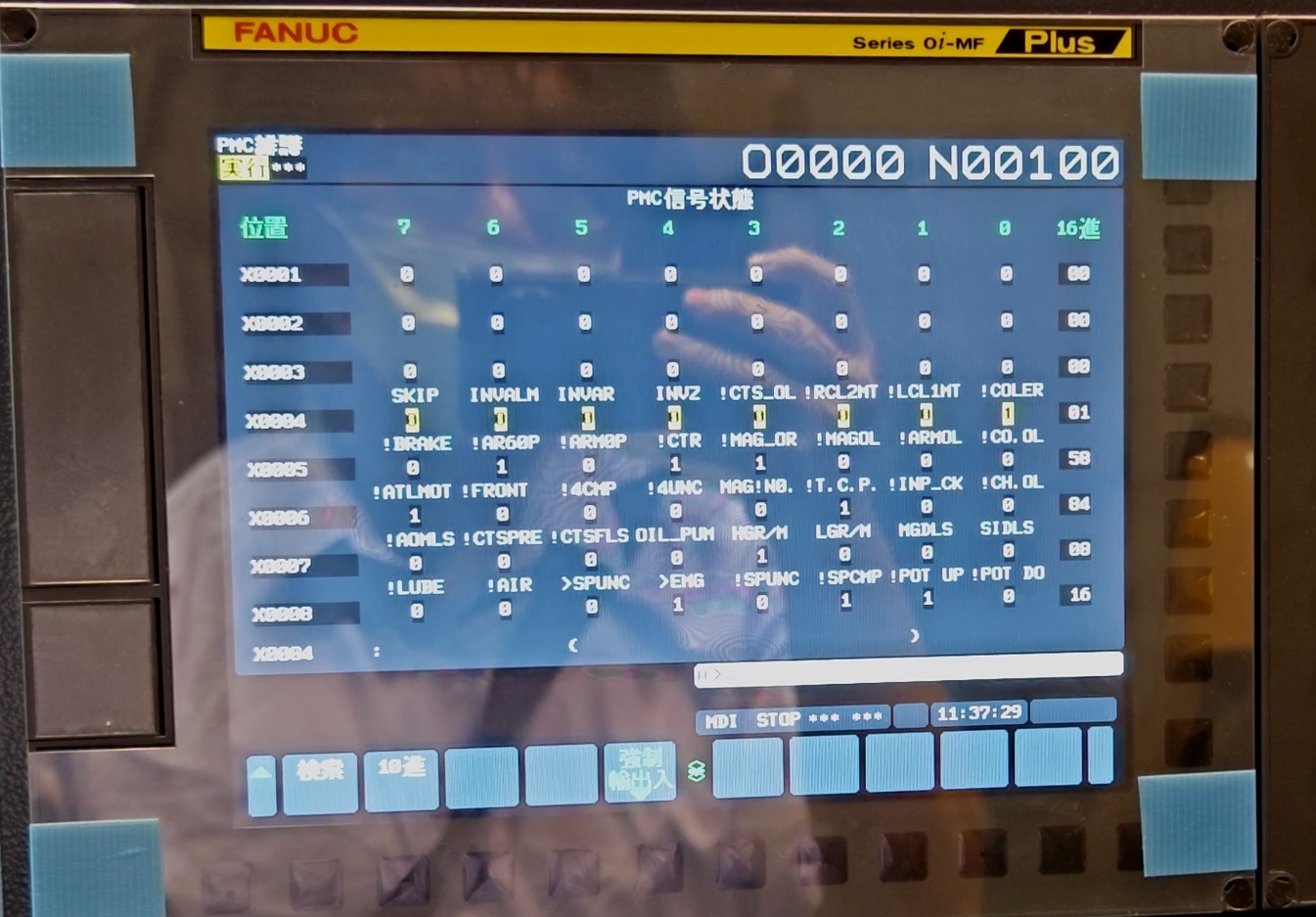
Step 8: Verify Skip Signal — FANUC PMC Signal Check
Access FANUC PMC Signal Status Screen
- Press the physical
[SYSTEM]key on the MDI keypad. - Press the softkey
[PMC](or PMC main menu) at the bottom of the screen. - Press the softkey
[PMC STATUS](or[STATUS]) to enter the signal status screen. - Type
X4orX0004on the MDI keypad, then press[SEARCH]to locate the address. - Lightly press the tool setter stylus, and verify that Bit 7 of
X0004(labeledSKIP) switches from0to1.
HDI0 is the physical high-speed digital input pin on the FANUC motherboard; X0004 is the PMC logical address. FANUC maps HDI0 to X4.7 (X0004 Bit 7) by default, so triggering the Skip signal reflects immediately in the X0004 Bit 7 = SKIP field.
Need Technical Support or Tool Setter Selection Advice?
T-SENSE engineering team is ready to assist with controller interface integration, wiring guidance, and measurement solutions.
Online Inquiry / Consultation